Example: Your router’s wireless performance may be affected by interference from other nearby routers. You can change the wireless channel to one which has less interference.
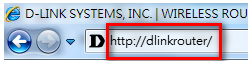
Step 1: Open your Internet browser and enter http://dlinkrouter, http://dlinkrouter.local, or http://192.168.0.1 into the address bar.
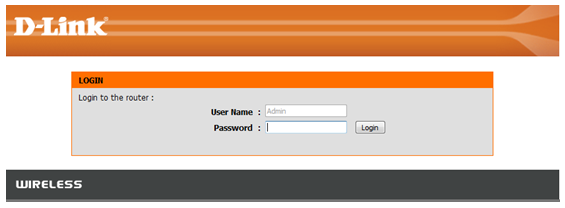
The default username is Admin. Enter your administrator password. If you have not changed the default password, this field should be left blank. Click Login.
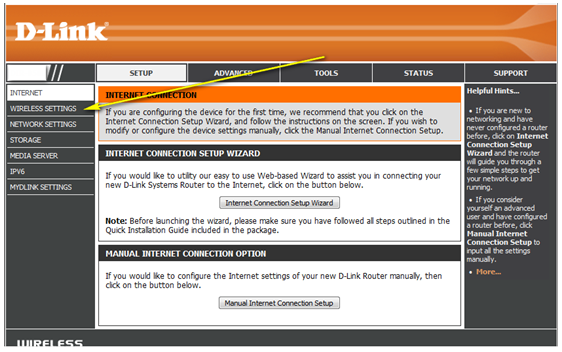
Step 2: Click on the Setup tab at the top of the configuration page and then click Wireless Settings from the menu on the left-hand side.
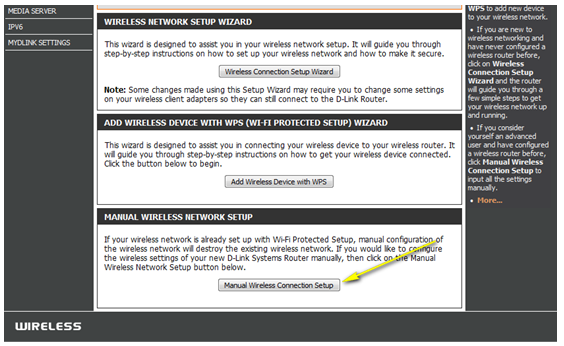
Step 3: Click on the Manual Wireless Connection Setup.
Step 4: Uncheck the “Enable Auto Channel Scan” box.
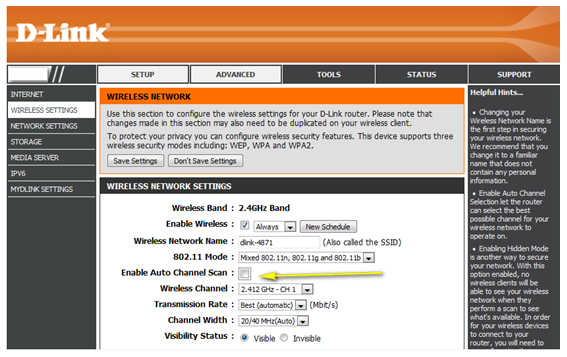
Step 5: Select a channel from the drop-down menu. For best results, use channel 1, 6, or 11.
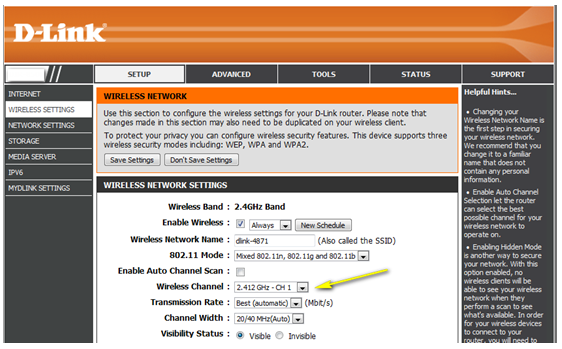
Step 6: Click Save Settings to save your configuration.
Note: In most cases, you only need to change the channel on the router. Most wireless adapters will automatically detect the channel used by your wireless network.